So you've enabled ADB on your BYD or Denza — congrats. You can now install third-party apps like DiPlus, Electro, and OverDrive. But there's one problem: ADB access can disappear.
An OTA software update, or even a random system glitch, can disable ADB without warning. When that happens, you'd normally need to go through the entire enablement process again — finding a technician, generating a new QR code, waiting for authentication.
BYD ADB Rescue may help preserve access, but installing the APK alone is not enough. Complete the permission, first-launch and verification steps below.
What is BYD ADB Rescue?
BYD ADB Rescue is a free, open-source Android app that checks and attempts to restore ADB settings after every infotainment restart. It was created by DottoreTozzi on GitHub and is completely free to use.
Here's how it works:
- Install the app while ADB is still active
- Grant the required permissions
- Open the app once and press one button
- That's it — the app runs in the background and checks ADB status after every reboot
If ADB settings get changed after a restart, the app attempts to restore them. It cannot guarantee recovery in every firmware or OTA situation.
What Does It Actually Protect?
BYD infotainment systems use two separate ADB modes:
- Standard Android ADB — controlled by
Settings.Global.adb_enabled=1 - BYD Wireless ADB — controlled by
persist.sys.adb.wiress.enable=trueandsys.connect.adb.wiress=1(the misspelling "wiress" is BYD's own — not a typo)
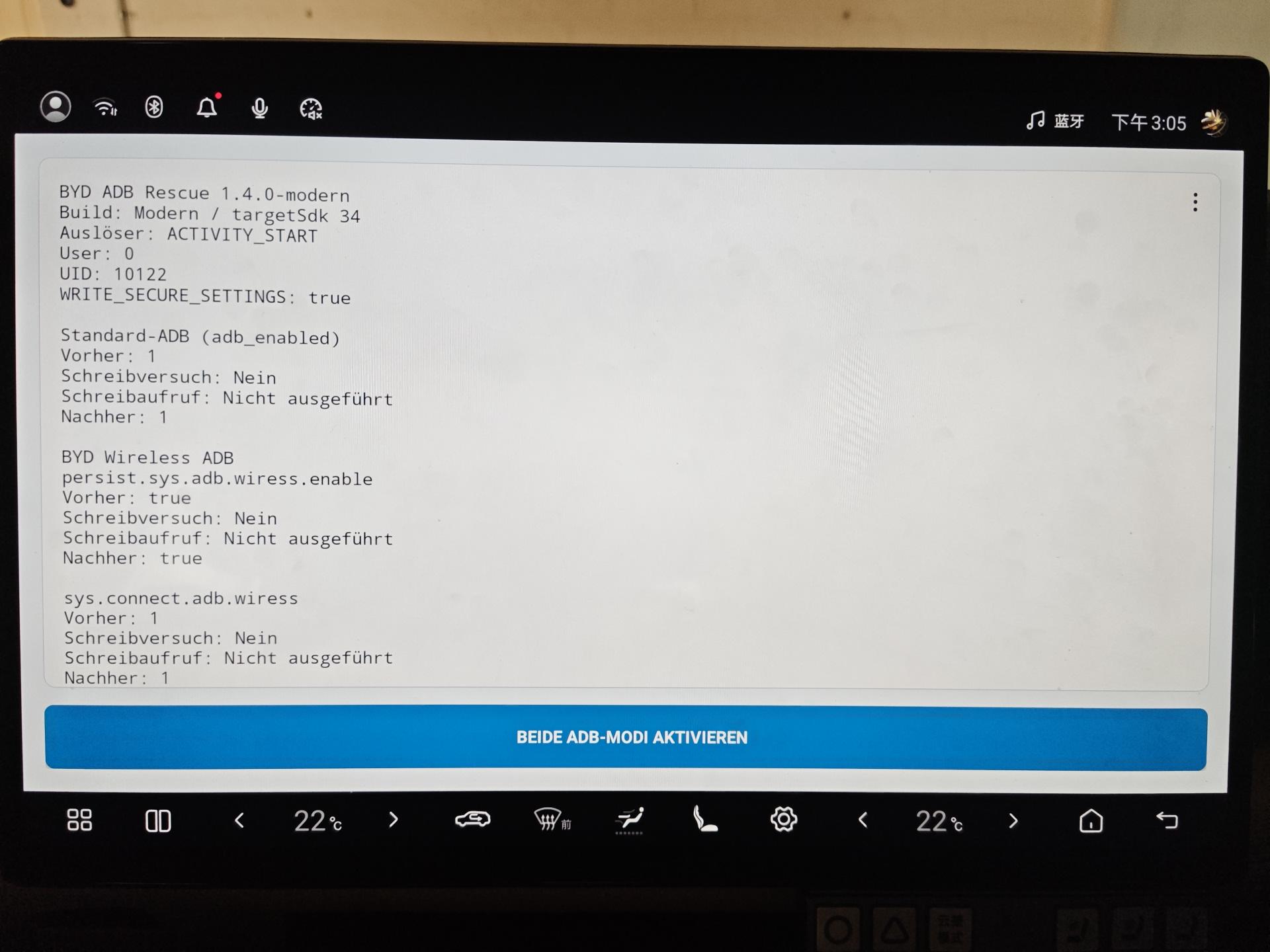
BYD ADB Rescue monitors and restores both modes. It reads back every value and reports the real result instead of assuming success.
How to Install It
Requirements:
- ADB must already be enabled on your vehicle
- A computer with ADB installed (Windows, Mac, or Linux)
- A WiFi ADB connection to the infotainment
Keep the vehicle parked during installation and testing. Use the checklist to track your progress; installing the APK alone does not complete setup.
Step 1: Check your ADB connection
Connect to your infotainment via WiFi, then run:
adb devicesYou should see your device listed followed by device. If the list is blank or says unauthorized, stop and fix your ADB connection first before continuing.
✅ You should see your device listed
Step 2: Check your Android version
adb shell getprop ro.build.version.releaseThis tells you which APK to download:
- Android 10 → download the Android 10 APK
- Android 14 → download the Android 14 APK
Step 3: Download the correct APK
Download from GitHub Releases. Choose the APK that matches your Android version from Step 2.
Step 4: Install the APK
adb install BYD-ADB-Unlock-Android-14-v1.4.0.apkReplace the filename with the actual APK you downloaded. You should see Success when installation completes.
✅ Installation should say Success
Step 5: Find your active Android user
adb shell am get-current-userThis returns a number — usually 0 or 10. Note this number down — you'll need it in the next step.
✅ Note your active Android user number
Step 6: Grant the required permission
Do not skip this step. The app cannot grant WRITE_SECURE_SETTINGS to itself. Run these commands from your computer while ADB is still connected.
Grant WRITE_SECURE_SETTINGS to user 0 (the base user):
adb shell pm grant --user 0 de.tozzi.bydadbkeeperdiag android.permission.WRITE_SECURE_SETTINGSThen grant it to your active user (replace 10 with the number from Step 5):
adb shell pm grant --user 10 de.tozzi.bydadbkeeperdiag android.permission.WRITE_SECURE_SETTINGSIf Step 5 returned 0, the first command already covers your active user. If it returned another number, use that number in the second command. If you see an error, resolve it before continuing.
After opening the app in Step 7, check that its diagnostic status says WRITE_SECURE_SETTINGS is granted. This permission allows the standard ADB setting to be changed; vehicle firmware may still block wireless ADB property writes.
Step 7: Open ADB Rescue and enable
Open the app on the infotainment screen. Press the big button: "Enable both ADB modes".
The first launch is required: newly installed Android apps remain stopped until opened. Read the app's diagnostic status and confirm that the permission is granted before marking this step complete.
Step 8: Verify it's working
Run these commands to check:
adb shell settings get global adb_enabled
adb shell getprop persist.sys.adb.wiress.enable
adb shell getprop sys.connect.adb.wiress
Expected values, in the same order:
1 / true / 1
1
true
1
✅ Final result should show 1 / true / 1
Only mark verification complete after checking all three outputs and confirming the app's permission status. Existing ADB access can already show these values, so the outputs alone do not prove that Rescue has its permission.
If a value is missing or different, do not mark setup complete. Recheck Steps 5, 6 and 7 and the app's diagnostic status. Wireless writes may be blocked by firmware; contact BAOLAB with the result if you need help.
Once the permission, first launch and verification are confirmed, the app can check and attempt to restore ADB settings after a restart. This is not a guarantee of recovery after every OTA update or a factory reset.
What Happens After a Factory Reset?
A factory reset removes installed apps, including ADB Rescue, and may require ADB re-enablement. Rescue also cannot guarantee recovery after an OTA update or system glitch. Contact BAOLAB if access is lost.
BAOLAB customers can check the service page for six-month free re-activation coverage. Installing Rescue is a precaution, not a guarantee that access will remain available.
Why You Should Install This Right Now
If you've already enabled ADB on your BYD or Denza, install ADB Rescue today. It takes 2 minutes and could save you hours of hassle later.
Think of it like insurance — you hope you'll never need it, but you'll be glad it's there when you do.
BAOLAB Customers
We recommend installing ADB Rescue while access is working. For six-month free re-activation coverage and inclusions, see the ADB Enablement Service.
Download
BYD ADB Rescue is free and open-source. Download it from GitHub:
github.com/DottoreTozzi/BYD-ADB-Unlock
BYD ADB Rescue is developed by DottoreTozzi and is not affiliated with BAOLAB, BYD, or Denza. Use at your own discretion.